
Smart TV Setup, Activation & Support
Get simple, step-by-step guidance for setting up your Smart TV, connecting to Wi-Fi, configuring essential settings, activating supported services, and installing your favorite streaming apps. FixMyTV provides clear and practical support to help make your Smart TV setup quick, easy, and hassle-free.
Expert Smart TV Setup Support
Setting up a Smart TV can involve several steps, including connecting to Wi-Fi, configuring essential settings, activating supported services, and installing your favorite apps. FixMyTV provides clear, practical guidance to help you complete the setup process smoothly and troubleshoot common issues with confidence.
Smart TV setup and initial configuration assistance
Wi-Fi and internet connectivity setup and troubleshooting
Step-by-step app installation and supported service activation
Assistance with account sign-in using customer-provided credentials only
Device performance optimization and software update guidance
System settings, display preferences, and remote control configuration
Reliable Smart TV Setup & Support
A properly set up Smart TV makes streaming, apps, and everyday entertainment easier to enjoy. FixMyTV provides clear guidance for Wi-Fi connectivity, app installation, device settings, software updates, and common setup issues, helping you get your TV ready to use with ease.
1. Smart TV Setup and Configuration
- Guidance for selecting language, region, and preferred display settings
- Help with basic TV configuration and accessibility options
- Support for checking and installing available software updates
- Assistance with connecting external devices such as streaming devices, speakers, and gaming consoles
- Guidance for adjusting picture, sound, and viewing preferences
- Help with configuring essential TV features and system settings
2. Smart TV Wi-Fi and Internet Support
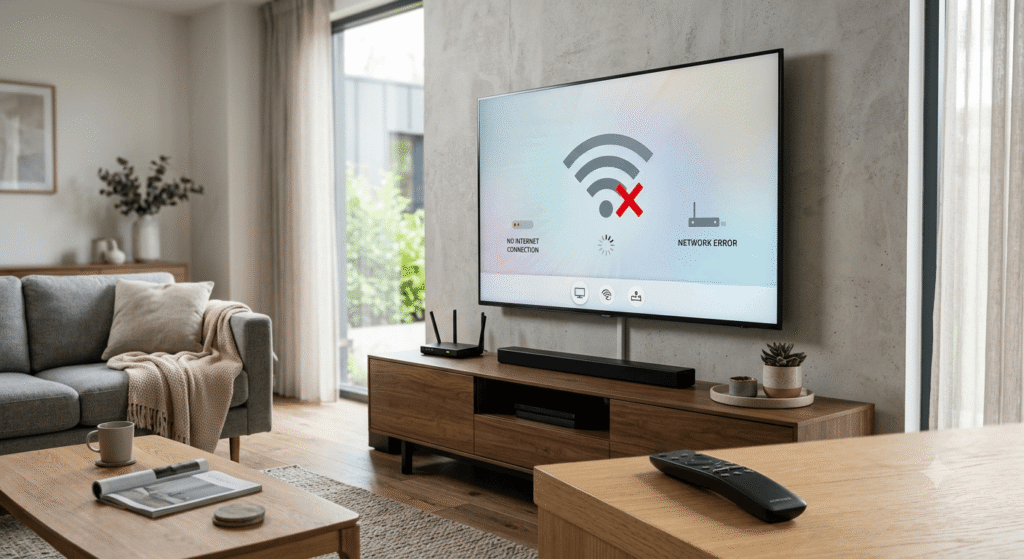
- Step-by-step assistance for connecting your Smart TV to Wi-Fi
- Guidance for wired and wireless network connections
- Troubleshooting common internet and connectivity problems
- Help with improving network stability for smoother streaming
- Guidance for checking router compatibility and Wi-Fi signal strength
- Instructions for reconnecting your TV after router, password, or network changes
3. App Installation and Activation Support
- Guidance for downloading apps through official Smart TV app stores
- Step-by-step assistance with app installation and setup
- Help with activation codes, on-screen verification, and supported sign-in methods
- Guidance for managing app permissions and preferences
- Troubleshooting support for common app installation and activation issues
- Help with application updates and compatibility checks
- Account sign-in assistance using customer-provided credentials only
Easy Smart TV Setup & Support
Setting up your Smart TV can be quick and straightforward when you follow the right steps. FixMyTV provides easy-to-understand guidance for connecting your TV, configuring essential settings, installing apps, and resolving common setup issues.
- Step-by-step guidance for setting up and configuring your Smart TV
- Assistance with Wi-Fi, internet, and network connections
- Simple instructions for downloading and installing supported apps
- Guidance for app activation and account sign-in using user-provided information
- Help with picture, sound, display, and system settings
- Troubleshooting support for common setup and connectivity problems
- Guidance for software updates and basic device performance improvements
- Practical technical support to help ensure your Smart TV is ready for everyday use
Our goal is to make Smart TV setup simple, convenient, and easy to follow, so you can get your device ready and start enjoying your favorite entertainment with confidence.
Vizio com setup FAQs
Find answers to common questions about Vizio TV setup, activation, internet connection, and configuration.
Vizio com setup provides step-by-step guidance for setting up your Vizio TV, connecting it to the internet, activating your TV, and configuring essential settings.
Turn on your Vizio TV, select your preferred language, connect the TV to a stable Wi-Fi network, and follow the on-screen setup instructions.
Open the network settings on your Vizio TV, select Wi-Fi, choose your home network, enter your Wi-Fi password, and wait for the TV to establish the connection.
An internet connection is recommended during Vizio TV setup because it allows you to access streaming services, software updates, apps, and other smart TV features.
Check that your Wi-Fi network is working properly, verify the password, restart your router and Vizio TV, and try connecting again through the network settings.
Follow the activation instructions displayed on your Vizio TV. Depending on your TV model, you may need to connect the TV to the internet and follow the on-screen prompts to complete activation.